

Breaking down the Teams Premium License

Overview of Microsoft Teams Premium
Microsoft’s Teams Premium is an add-on license designed to enhance the core Teams experience by offering a range of advanced features. These capabilities are tailored to support improved interactions, whether you're meeting with clients or collaborating with team members. For organizations already using Microsoft Teams, Premium offers additional tools that can enhance communication and connection throughout the business.
This blog will provide an in-depth comparison between Teams Premium and the standard Teams offering, discussing the features available for meetings, webinars, and town halls, and more. We will also discuss the Teams Premium add-on license itself, outlining the steps and best practices for acquiring it.
Teams vs Teams Premium
Microsoft Teams Premium builds upon the standard Teams license by offering users all baseline capabilities, along with additional features for meetings, webinars, town halls, enhanced meeting protection, and more. The premium license provides advanced features that exceed those included in the standard license.
The standard license remains a strong choice; its pricing may be more advantageous for users who do not require access to advanced functionality, depending on their roles and responsibilities within the team. It is important to note that the premium license is offered on a per-user basis, whereas the standard license is not; therefore, each user requiring premium features will need an individual premium license.
We want to highlight and focus on outlining the most relevant features to users. The table below provides a comparison of select features available in both Teams and Teams Premium. Be sure to take a look at our downloadable resource highlighting more of the additions to you will receive with a premium license.
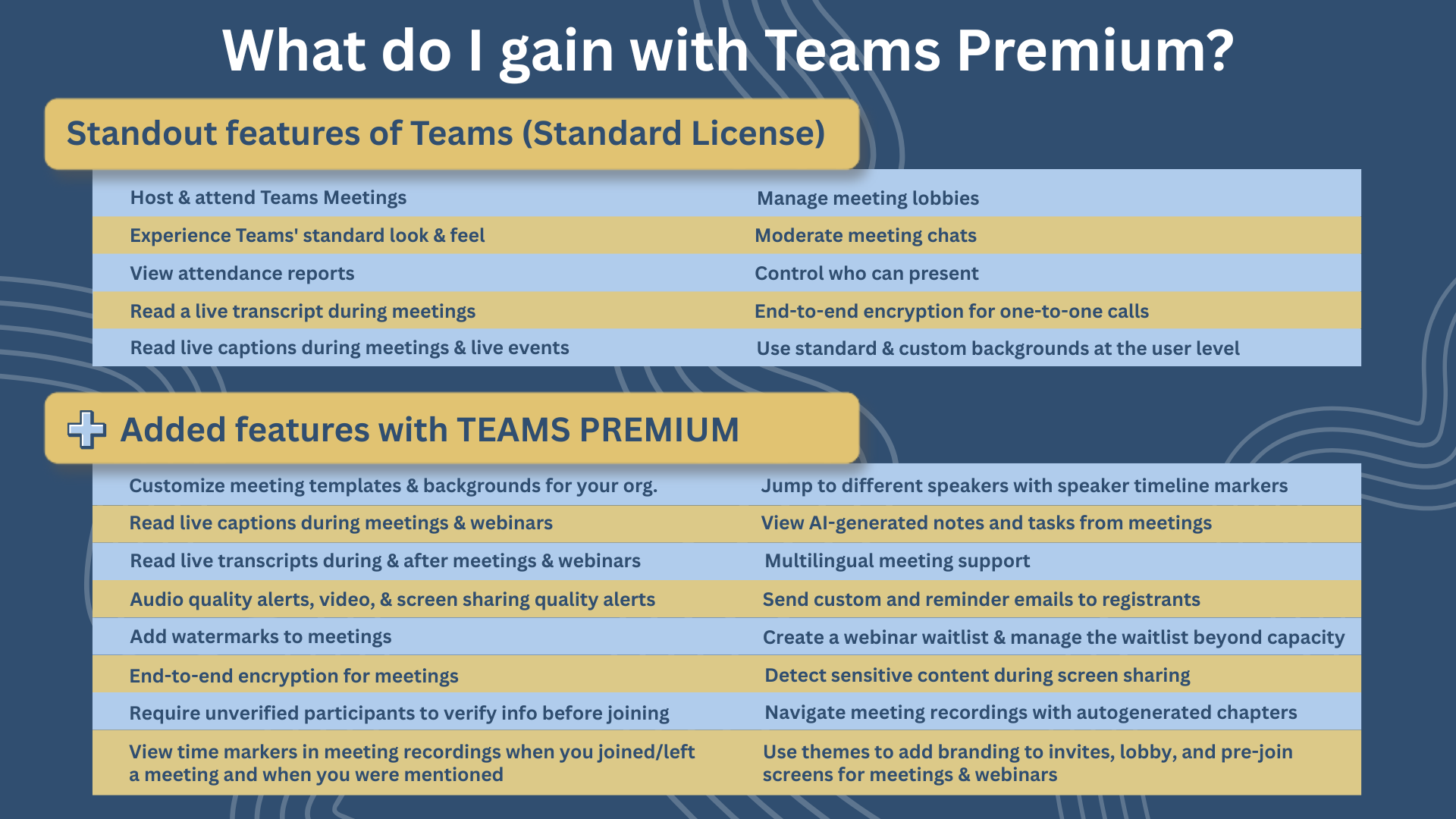
Teams standard license and premium license comparison chart.
Premium Features
Teams Premium introduces numerous new meeting features, as illustrated in the chart above. Now that you have a visualization of the new features for different topics, let’s dive a bit further into some of the top features in Meetings, Webinars, and Town Halls.
Intelligent Meeting Recap
Teams provides the ability to utilize Intelligent Recap for meetings, webinars, town halls, and calls. This function uses A.I technology to increase your productivity and efficiency. The standard team's license allows you to view and record meetings, view transcripts, and use the files & apps added to meetings. When you have Teams Premium, you receive even more features, including:
Navigate meeting recordings with autogenerated chapters.
View time markers in meeting recordings when you joined/left a meeting and when you were mentioned.
Jump to different speakers with speaker timeline markers
View A.I. generated notes and tasks from meetings.
And more
With access to these Premium features, you can easily track action items from meetings. You'll be able to catch up on conversations or discussions you missed due to attending other meetings or simply because there were so many topics covered. A.I. notes will make it simple to review your conversations and highlight the key points.
Receive Audio Quality Alerts in Meetings
Administrators can set up alerts for real-time audio quality problems during meetings and receive notifications when certain users encounter difficulties. You can tailor your monitoring preferences based on various audio conditions and adjust the frequency of notifications. Select which users you’d like to track regarding their meeting audio quality.
For instance, if you’re meeting with a client and your team, enable this feature for everyone who will play a significant role in the conversation. This tool helps identify and address potential issues before they disrupt the meeting. If you know a colleague is experiencing audio issues, you can contact IT for assistance. Alternatively, if a problem arises during the meeting, another participant can take over as the person experiencing issues troubleshoots.
Protect your meetings
Protecting your sensitive data is crucial. With Teams Premium, you can use sensitive content detection during screen sharing to safeguard information such as credit card and account numbers.
If this feature identifies sensitive data while you're presenting, both the presenter and meeting organizer receive a prompt to stop sharing, reducing the chance of unintentionally exposing private information. You can choose which meetings have this protection enabled. Examples of sensitive items include:
Credit card numbers
U.S. bank account numbers
ARA routing numbers
U.S. Social Security numbers
U.S. Individual Taxpayer Identification Numbers
Teams Premium also gives you the option to require end-to-end encryption for your sensitive meetings, adding an extra layer of protection. The standard team's license allows this for one-to-one calls, but with Premium, they add more.
End-to-end encryption acts like a sealed hallway where only the people at each end can see what’s inside. In contrast, standard Teams meetings are like hallways with guarded intersections, allowing certain services to enhance your meeting's productivity, such as breakout rooms, live captions, transcription, Microsoft 365 Copilot, Excel Live, recordings, and more.
If you choose end-to-end encryption, you won’t be able to use those added meeting functions, since no other services are allowed access to your meeting data. It’s similar to taking extra precautions for a confidential in-person meeting, like closing the blinds and keeping outsiders out, versus relying on regular security for routine discussions.
Create and Manage Themes and Branding
With Teams Premium, you can personalize meeting themes and branding. This means you can incorporate your organization's brand colors, logos, and custom images. You can also design multiple themes for different departments or for company-wide use, ensuring everything aligns with your brand identity. These themes are visible to all participants in the meeting, including both internal and external attendees.
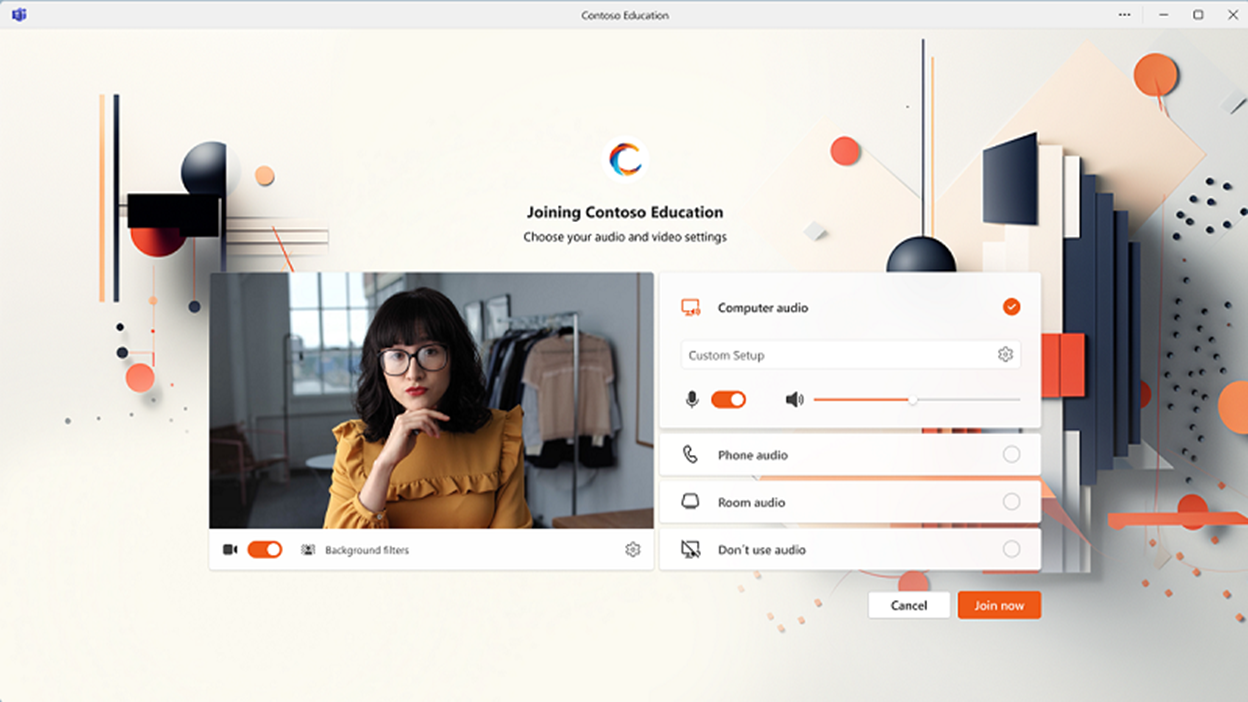
Image courtesy of microsoft
Manage Email Communications for Events
Next, let’s dive into some new features for webinars, including enhanced management of event-related email communications. With these improvements, event organizers and co-organizers will have the capability to customize email templates associated with their webinars. Additional functionalities include efficient waitlist administration and timely reminders for registered attendees. By default, your audience will receive an email reminder one hour before your event starts. However, you can edit this option to remind your audience sooner, by hours or days. You can also provide comprehensive instructions for participants before, during, and after the event.
A variety of email templates will be available for editing, such as:
Attendee cancellation notifications
Pending approval communications
Registration confirmations
Rejection messages
Waitlist updates
Licensing and Additional Considerations
Since Teams Premium is an add-on, a valid Microsoft 365 subscription and a Teams license are required before you can upgrade to Teams Premium. The Team's Premium license is created to enhance and build upon what you already utilize in your standard Teams license.
Teams Premium is licensed on a per-user basis, meaning that once you purchase the license, you can only assign it to one user, rather than an entire team or company. It is essential to be strategic when assigning the Premium license, considering the user’s position and responsibilities, such as administrators and meeting organizers.
It is also important to note that Teams checks your license and role, which are factors for every feature, ensuring that each user gets the right experience at the right time.
For example, when you join a meeting, Teams will verify the type of license you have and determine whether you are the organizer or an attendee. Some features are tied to the organizer. If the meeting organizer has a Teams Premium license, then those features are enabled for the event and shared with all attendees. Other features are strictly attendee-based, if you join a meeting as an attendee, you will not be able to share your premium features.
If an organizer with Teams Premium appoints a delegate to create meetings, the delegate doesn’t need a Premium license for organizer-based features to work. The organizer's license will cover it. You can assign different team members to tasks that require a Teams Premium license, even if they don't have one.
There is much to discover about making the most of a Teams Premium license. Compared to the standard version, it brings notable improvements, including greater flexibility for Meetings, Town Halls, and Webinars, from enhanced features from sensitive content detection to customizable themes and branding options. Teams is designed to facilitate seamless communication and collaboration among members and audiences, and Premium makes this process even more straightforward.
To learn more about Microsoft Teams or Microsoft 365, visit our website, where you can find pricing and additional details about our various solutions.